ShopOS User Guide
Your complete manual for managing your shop, your team, and your workflows with GearGenius.ai ShopOS.
Getting Started
GearGenius.ai ShopOS serves as an organizational workflow layer designed to connect FlatRate Pro technicians with shop managers and owners. The primary owner and manager workspace now lives at /shopos/. From intake to final invoice, ShopOS acts as your central service board.
Why the FlatRate Pro integration matters: every technician's FlatRate Pro workspace is free and belongs to the technician — it follows them for their whole career. When a technician joins your ShopOS organization, work you dispatch lands directly in their own FlatRate Pro queue. You never buy per-technician seats: one flat ShopOS subscription covers your whole team, and your technicians keep a career record they own.
Accessing the Organization Dashboard
Once you create or claim your ShopOS organization, logging in automatically grants you access to the Manager Hub. Technicians invited to your organization will continue to use their core FlatRate Pro app, but their shared jobs and clock times will automatically sync to your dashboard.
Manager Hub & Verifications
The Manager Hub is your daily operational nucleus. It intercepts the gap between the mechanic's bay and the service counter, providing a real-time overview of your shop’s active operations, pending verifications, and your team's live status pulses.
The Roster Scan View
The main Team workspace displays a rapid-glance dashboard of your connected technicians, allowing you to instantly assess current bandwidth:
- Live Status: See an active pulsing indicator of who is currently clocked into a job vs. who is on standby waiting for their next dispatch.
- Efficiency Snapshot: Quick overviews of their labor efficiency for the active pay period (actual time vs. flag time).
- Quality Score: The current FlatRate Pro quality score tied to their work, giving you an immediate sense of performance before assigning complex diagnostics.
Handling Pending Verifications (Manager Triage)
Verification is the most crucial step of the ShopOS workflow loop. It ensures nothing leaves the bay without accountability.
When a technician securely shares a finalized repair order via the FlatRate Pro app, it instantly drops straight into your Manager Hub's Pending Verifications queue.
- Managers or lead technicians review these completion tickets to QC the work.
- You will see exactly how much actual time was spent vs. the billed guide time.
- Rejecting: If notes are missing or QC fails, managers can route the ticket back to the technician for revisions.
- Approving: Once accepted, the job is securely stripped from the "active operations" load and staged into the final billing queue, locking in the technician's logged hours.
Workflow Board
The Workflow Board serves as the primary navigation map for any active job. Unlike older legacy systems that try to force every vehicle into a flat generic ticket, ShopOS is strictly diagnosis-first. This ensures standard work orders adapt dynamically as new faults, broken parts, or required maintenance are discovered during the initial inspection.
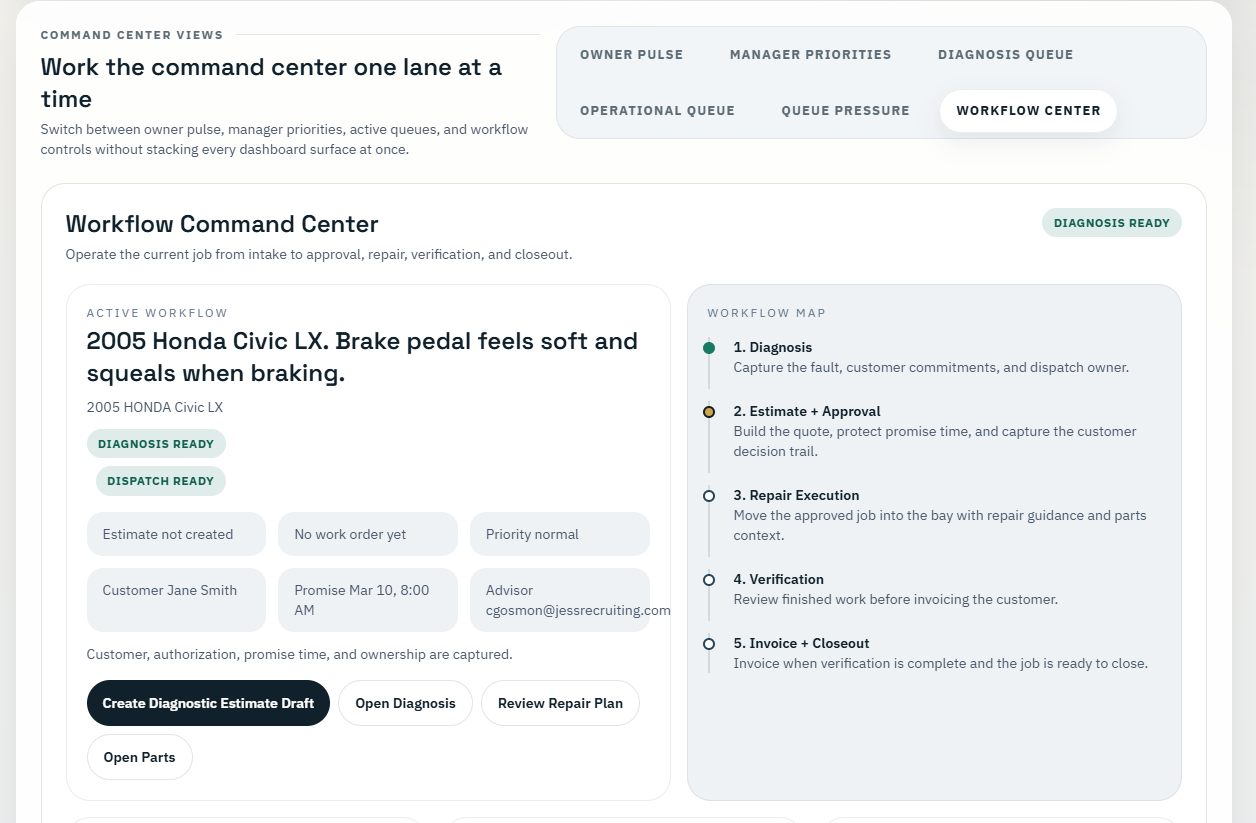
The 5-Step Workflow Map
Once a task enters the system, it is tracked across five distinct operational phases. You can navigate a job’s status by selecting it from the active queue.
- 1. Diagnosis (Active Inspection): The job sits with the technician. The tech uses their FlatRate Pro app to log live time, add voice notes regarding their findings, and attach identified faults to the shared order. The manager can see live updates streaming in as the diagnosis unfolds.
- 2. Estimate & Approval Phase: Once the tech shares their diagnosis, the workflow shifts to the Manager Hub. It's time to build the digital quote. The manager attaches precise labor guide times, tags required parts, and creates the estimate. Depending on the shop settings, the estimate can either be approved internally (phone call with customer) or sent via secure digital link for the customer's signature.
- 3. Repair Execution (Wrench Turning): After approval is secured, the manager dispatches the job back into the bay. No more paper shuffling. The technician sees the finalized repair instructions, guide times, parts lists, and the promise time right in their FlatRate Pro workspace. They clock in, and the true wrench-turning begins.
- 4. Verification (Manager QC): Once the repair is physically complete, the tech marks the job "Done" and securely routes it back. It drops into the Manager Hub’s Pending Verifications queue. A manager, shop foreman, or lead tech can review the completion ticket, check the final logged hours against the billed hours, and QC the work before final closeout to ensure everything safely aligns.
- 5. Invoice & Closeout: When the verification is successful and marked "Approved", the job moves to final billing. You can export the finalized work order data, sync it with your accounting stack, or use the native ShopOS output generator to hand the final PDF to the customer.
Status Tagging & Priority
Jobs on the workflow board can be given special status tags like Waiting on Parts, Customer Callback, or Comeback, ensuring that bottlenecks are immediately apparent on the main dashboard.
AI Diagnostics Intake
To reduce front-counter friction, ShopOS incorporates an aggressive AI-assisted intake engine specifically modeled for Service Advisors and Counter Staff. It is specifically built to turn disorganized customer complaints into highly structured mechanic diagnostics plans.
Split Canvas Process
The intake flow is purposefully divided to protect the integrity of the diagnostic path:
- Diagnostic Intake Canvas: Rapidly capture Customer context, Vehicle details, Primary Complaint, and Dispatch priority.
Pro Tip: Utilize hands-free Voice Intake to just speak out the service request ("Taylor Morgan, 2018 Ford F-150, customer states rough idle and flashing check engine light"). ShopOS transcribes the request into the intake fields so the advisor can review and correct anything ambiguous before saving. - Diagnostic Review Canvas: Before dispatching the vehicle into the bay, review the AI’s generated Advisor Brief, Suggested Intake Plan, and Estimated Labor/Repair ranges. This layer acts as a safety net, allowing your front counter to clearly position cost and time expectations perfectly with the customer before the technician ever turns a wrench.
Converting Intake to Work Order
Once the Review Canvas is verified by the manager or advisor, clicking Generate Work Order instantly moves the job to the Service Board and notifies the assigned technician. It seeds the technician's FlatRate Pro app with the exact complaint, the AI's diagnostic suggestions, and the target timeline.
Shop & Technician Analytics
Switching easily to the Shop Analytics view allows you to step back from granular work orders and survey the aggregate health of your entire organizational operation.

Cross-Team Performance Scorecards
A successful shop lives and dies by its actual labor margins. The analytics center automatically aggregates verified technician data to generate cross-team leaderboards. You can securely sort your roster by:
- Average Labor Efficiency: Identify who is routinely beating the flat-rate guide time and who is bleeding margin on the clock.
- Total Verified Jobs: See individual throughput scales over the current week, month, or customized pay periods.
- Comeback Rates: Track the ratio of rejected/returned verification tickets for rapid quality control monitoring.
Strategic Coaching Adjustments
Comparing these scorecards isn't just about critique—it provides actionable intelligence. Use this operational data to dynamically map skill levels to task types.
For example: If Technician A shows highly efficient turn-times on standard maintenance but struggles with complex wiring bugs, while Technician B excels at deep diagnostics but lags on brake jobs, your Manager Hub can intelligently route incoming AI Intake cards to the technician mathematically proven to handle it best. This directly bolsters shop speed while protecting repair quality.
Team Settings & Access
Unlike enterprise systems that strictly gate seat limits and access, ShopOS empowers you to scale effortlessly by assigning strict permissions based on your internal operational hierarchy. Control who has access to what, securely separating financial visibility from daily mechanical operations.
Permission Tiers
- Administrators: Maintain ultimate, overarching control. Admins can alter organizational settings, update the physical shop details, add/remove managers, adjust billing subscriptions, and pull high-level revenue exports.
- Managers & Dispatchers: Operate the day-to-day command flow in the Manager Hub. They handle the critical verification loops, assign dispatch roles to technician rosters, generate customer quotes, and use dashboard analytics to route workflows. They do not have access to organization billing controls.
- Technicians (Mechanic Sovereignty): ShopOS uniquely preserves mechanic sovereignty. Technicians accept secure email invitations to join the organization's roster. Once they accept, they do not need to learn a clunky desktop software; they continue working securely out of the native iOS/Android-ready FlatRate Pro layout they already know and love.
Security Note: ShopOS cleanly extracts only the data explicitly linked to shared organizational jobs. Technicians’ personal or side-work logs created outside of the organization's purview remain 100% private.
Managing the Billing Subscription
For $249/mo per organization, the organization gains the complete layer of features. Billing is seamlessly handled via Stripe, accessible right from the Admin Settings tab. Managers can easily pull PDF receipts of the subscription for their own internal tax/accounting purposes.
Invoicing & Digital Payments
ShopOS cuts out the need for expensive third-party accounting bridges by providing a direct-to-customer Stripe integration built right into your dashboard.
Connecting Your Shop's Stripe Account
Administrators can securely connect their shop's existing Stripe account natively within the ShopOS Settings. Once connected, revenue flows directly to your bank account—GearGenius handles the software routing, but your money remains yours.
The Payment Flow
- Generate Invoice: Once a completed work order passes the Manager Verification stage, it is instantly converted to a "Ready to Invoice" state.
- Create Payment Link: Managers can generate a secure, unique Stripe Checkout link directly from the invoice record.
- Customer Checkout: If customer delivery succeeds, the customer can open the link from email and pay securely with Apple Pay, Google Pay, or any major credit card. If delivery is deferred, fails, or contact data is missing, staff should copy the payment link and share it manually.
- Automated Reconciliation: ShopOS listens for Stripe webhooks. When a payment is successful, the related Work Order is automatically marked as "Paid" and dropped from the active queue. Expired or failed links are flagged immediately for the manager.
The Device Ecosystem
To keep things efficient, ShopOS separates the "Desk" from the "Bay" seamlessly across the unified GearGenius.ai suite.
ShopOS (The Desktop Service Board)
Accessed via web browser (geargenius.ai/shopos/). While fully responsive and usable on a tablet or mobile phone, ShopOS shines on a fast desktop or large tablet at the service counter. This is where Service Advisors intake vehicles, Admins review analytics, and Managers verify complex repairs.
FlatRate Pro (The Native Mechanic Layer)
Accessed via native iOS and Android apps in the mechanic's bay. This interface is built for dirty hands and fast data entry. The UI features large touch targets native to mobile devices. There are no distracting "Manager Panels." They only see exactly what needs to be fixed, their individual toolsets, and their own timecards.
By keeping the tools specific to the role, ShopOS eliminates software friction and lets your team get back to making money.